

NumberField#
Numeric input with optional stepper buttons, bounds enforcement, and keyboard/ mouse-wheel stepping.


Usage#
A number field reads and writes a real int or float through
field.value — or None when empty — never a string. Bind a
Signal with signal= to keep a typed variable in
lockstep. Type into it, press the ±steppers, or step with the arrow keys and
mouse wheel; min_value/max_value clamp the result, while value_format
changes only how the number is displayed.
Basic#
bs.NumberField()
bs.NumberField(42)
bs.NumberField(3.14, step=0.01)
Label and message#
Use label= for a field title and message= for helper text below.
bs.NumberField(
    label="Quantity",
    message="Enter a value between 0 and 100.",
)
Required#
Set required=True to mark the field visually and prevent empty submission.
bs.NumberField(label="Quantity", required=True)
Bounds and step#
Use min_value=, max_value=, and step= to constrain input.
Arrow keys and the mouse wheel step by step. Stepper buttons disable
automatically at the bounds. Set wrap=True to wrap from the maximum back to
the minimum (and vice versa) when stepping past a bound.
bs.NumberField(min_value=0,   max_value=100, step=5,   label="0–100, step 5")
bs.NumberField(min_value=0.0, max_value=1.0, step=0.1, label="0.0–1.0, step 0.1")
bs.NumberField(min_value=1, max_value=12, value=12, wrap=True, label="Month (wraps)")
Stepper buttons#
The +/− buttons are shown by default. Hide them with show_steppers=False.
bs.NumberField(label="With steppers", value=25)
bs.NumberField(label="No steppers",   value=25, show_steppers=False)


Programmatic stepping#
Call increment() and decrement() to step the value in code.
field = bs.NumberField(value=10, step=5)
field.increment()    # → 15
field.decrement(2)   # → 5
field.clear()        # empties the field — value becomes None, not 0
Value formatting#
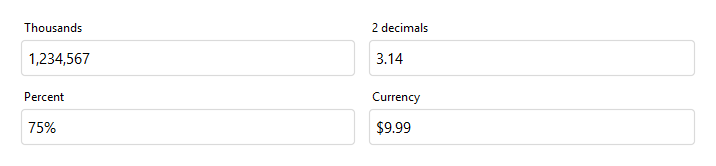
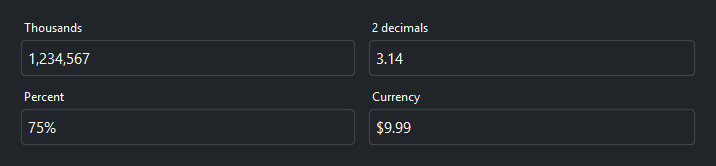
Use value_format= to display the number with a locale-aware ICU pattern.
The raw numeric value is preserved internally; only the display changes.
Requires localization to be enabled.
bs.NumberField(1234567, value_format="#,##0",    label="Thousands",  show_steppers=False)
bs.NumberField(3.14159, value_format="#,##0.00", label="2 decimals", show_steppers=False)
bs.NumberField(0.75,    value_format="percent",  label="Percent",    show_steppers=False)
bs.NumberField(9.99,    value_format="currency", label="Currency",   show_steppers=False)
States#
bs.NumberField(value=42, label="Normal")
bs.NumberField(value=42, label="Read only", read_only=True)
bs.NumberField(value=42, label="Disabled",  disabled=True)


Reactive binding#
Bind a Signal with signal= to keep a typed numeric variable and the field
in sync. The signal carries the parsed int/float, not the text — use a
float-typed Signal(0.0) when the field accepts decimals.
qty = bs.Signal(1)                       # int-typed; Signal(0.0) for decimals
field = bs.NumberField(label="Quantity", signal=qty, min_value=1)
qty.set(5)            # updates the field
field.value          # 5  (a number, never a string)
A number field binds its numeric value, so signal= is the only binding it
takes — pass a number-typed Signal, never a string.
Validation#
Attach rules with add_validation_rule(); they validate the field’s typed
value — a number, or None when empty. The range rule checks numeric
bounds with a message (distinct from the silent clamping of min_value /
max_value):
field = bs.NumberField(label="Age")
field.add_validation_rule(
    "range", min=0, max=120,
    message="Age must be between 0 and 120.",
    trigger="blur",
)

is_valid = field.validate()   # run every rule on demand


Validity is reactive state. field.valid is a Signal[bool] and
field.error a Signal[str] (the current message, "" when valid) — bind
the error straight to a label and it keeps itself in sync:
bs.Label(textsignal=field.error, accent="danger") # shows and clears itself
Note
The full rule taxonomy, the range rule, custom rules (whose func
receives the typed number, not text), and aggregating a whole form’s validity
live in the Validation guide.
Keyboard#
Up / Down — step the value by
step(commits like a stepper press).Mouse wheel — step up or down while the field is focused.
Enter — commit the current input and fire
on_submit.
Stepping past a bound clamps to it, or wraps to the opposite bound when
wrap=True. Stepping does nothing while the field is read-only or disabled.
Widget sizing#
All widgets accept self-placement kwargs via **kwargs. The parent
container determines which options apply — Column / Row parents use
the layout kwargs below, grid-based parents use grid kwargs.
Column (vertical layout)
Used inside a Column, App, or any other container with a column layout.
Children are arranged top-to-bottom, so horizontal aligns each child across
the width and grow shares the vertical space. (vertical does not apply —
the order of the children sets their top-to-bottom position.)
|
Cross-axis placement of the widget: |
|
Claim and fill a share of the leftover vertical space (the layout
direction). |
|
External spacing in pixels. Accepts an integer (equal on all
sides), a 2-tuple |
|
Horizontal external spacing (left and right). Accepts an integer
or a 2-tuple |
|
Vertical external spacing (top and bottom). Accepts an integer
or a 2-tuple |
Row (horizontal layout)
Used inside a Row or any other container with a row layout. Children are
arranged left-to-right, so vertical aligns each child across the height and
grow shares the horizontal space. (horizontal does not apply — the order
of the children sets their left-to-right position.)
|
Cross-axis placement of the widget: |
|
Claim and fill a share of the leftover horizontal space (the layout
direction). |
|
External spacing in pixels. Accepts an integer (equal on all
sides), a 2-tuple |
|
Horizontal external spacing (left and right). Accepts an integer
or a 2-tuple |
|
Vertical external spacing (top and bottom). Accepts an integer
or a 2-tuple |
Grid
Used inside a Grid container.
|
Zero-based row and column indices. |
|
Number of rows or columns to span. |
|
Horizontal placement within the grid cell: |
|
Vertical placement within the grid cell: |
|
External spacing in pixels. Accepts an integer, a 2-tuple
|
|
Horizontal external spacing. Accepts an integer or |
|
Vertical external spacing. Accepts an integer or |
See also#
TextField — plain text input
Slider — drag-to-set numeric value
Validation — the full rule set, typed-value model, and form validity
Customizing Fields — add buttons or icons inside a field, and reusable field types
Signals — the reactive binding behind
signal=
API#
The complete reference for NumberField lives on the
Widgets API page. At a glance:
A numeric input field with optional stepper buttons. |
Full Example#
 1
 2with bs.App(title="NumberField Demo", padding=20, gap=16) as app:
 3
 4    # Basic
 5    bs.Label("Basic", font="heading-sm")
 6    with bs.Row(gap=8, vertical_items="bottom"):
 7        bs.NumberField()
 8        bs.NumberField(3.14, step=0.01, label="Float step")
 9
10    # Label, message, required
11    bs.Label("Label, Message, Required", font="heading-sm")
12    bs.NumberField(
13        label="Quantity",
14        message="Enter a value between 0 and 100.",
15        required=True,
16        horizontal="stretch",
17    )
18
19    # Bounds and step
20    bs.Label("Bounds and Step", font="heading-sm")
21    with bs.Row(gap=8, horizontal="stretch", grow_items=True):
22        bs.NumberField(min_value=0, max_value=100, step=5, label="0–100, step 5")
23        bs.NumberField(min_value=0.0, max_value=1.0, step=0.1, label="0.0–1.0, step 0.1")
24
25    # Stepper buttons
26    bs.Label("Stepper Buttons", font="heading-sm")
27    with bs.Row(gap=8, horizontal="stretch", grow_items=True):
28        bs.NumberField(label="With steppers", value=25)
29        bs.NumberField(label="No steppers",   value=25, show_steppers=False)
30
31    # Value formatting
32    bs.Label("Value Formatting", font="heading-sm")
33    with bs.Grid(columns=[1, 1], gap=8, horizontal="stretch", vertical_items="center"):
34        bs.NumberField(1234567, value_format="#,##0",    label="Thousands",  show_steppers=False)
35        bs.NumberField(3.14159, value_format="#,##0.00", label="2 decimals", show_steppers=False)
36        bs.NumberField(0.75,    value_format="percent",  label="Percent",    show_steppers=False)
37        bs.NumberField(9.99,    value_format="currency", label="Currency",   show_steppers=False)
38
39    # States
40    bs.Label("States", font="heading-sm")
41    with bs.Row(gap=8, horizontal="stretch", grow_items=True):
42        bs.NumberField(value=42, label="Normal")
43        bs.NumberField(value=42, label="Read only", read_only=True)
44        bs.NumberField(value=42, label="Disabled",  disabled=True)
45
46app.run()