

AppShell#
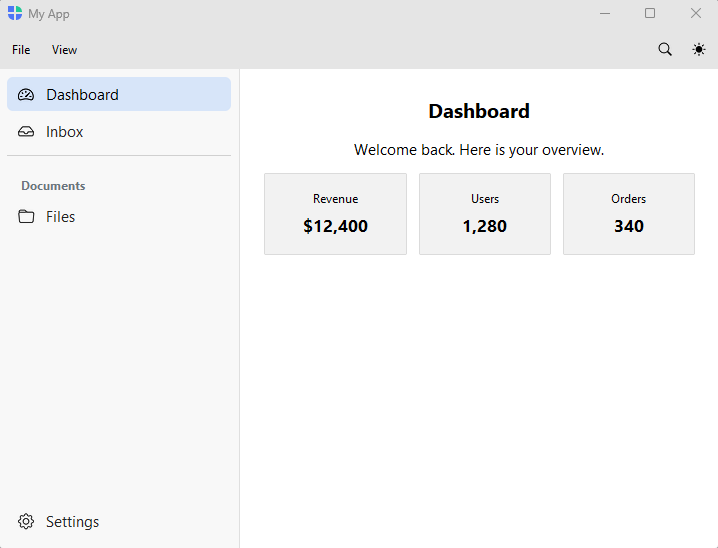
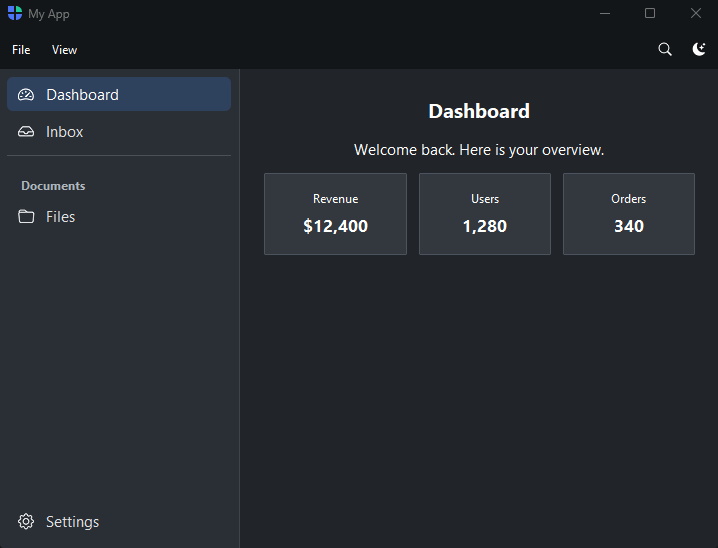
A single-tier application scaffold: a stack of toolbars across the top, one
navigation sidebar on the left, and a content area that swaps as you navigate. A
full-width status band can run along the bottom. For a multi-section app with a
VS Code-style workspace rail, use Workbench
instead.
Usage#
An AppShell wires up the application chrome — toolbars, a sidebar, a content
area that swaps as you navigate, and a status band — so you fill each piece
(shell.add_toolbar(), the sidebar provider, shell.statusbar) rather than
assembling the layout yourself.
Sidebars at a glance#
The sidebar is filled by exactly one provider, declared with one of four
front doors — they are mutually exclusive (a sidebar is one of these, not a mix).
Each is shown below; the linked guide walks through building it. The same four
front doors work inside a Workbench workspace.
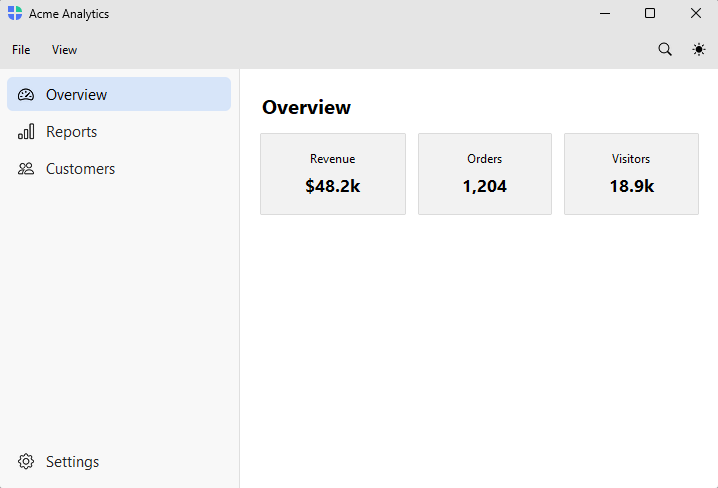
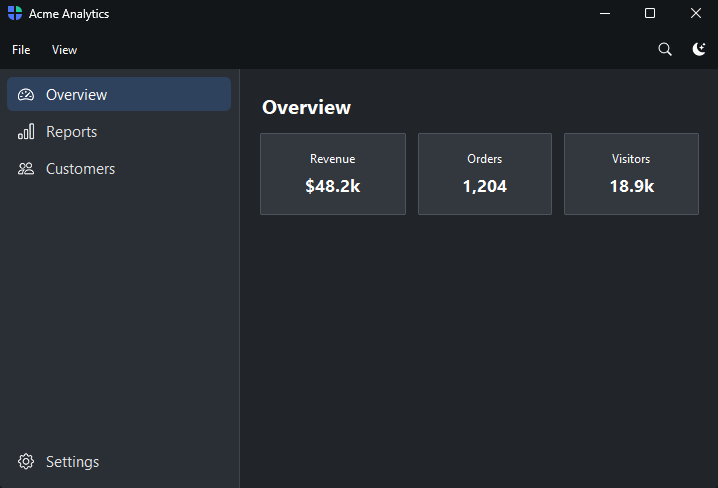
A flat list of authored pages (add_page / add_header / add_divider).
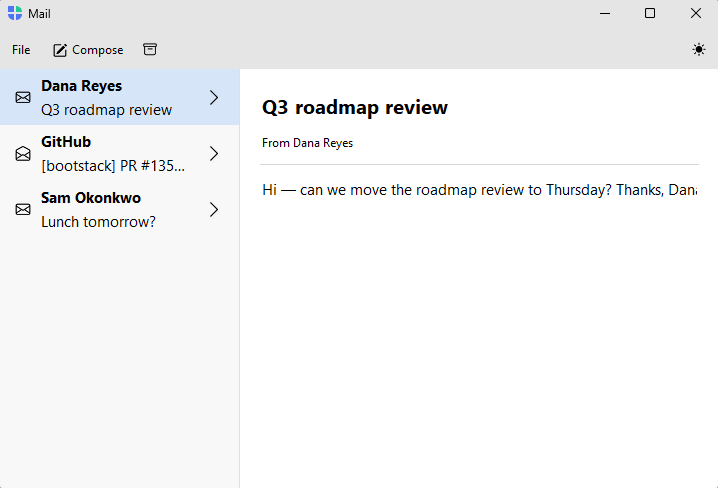
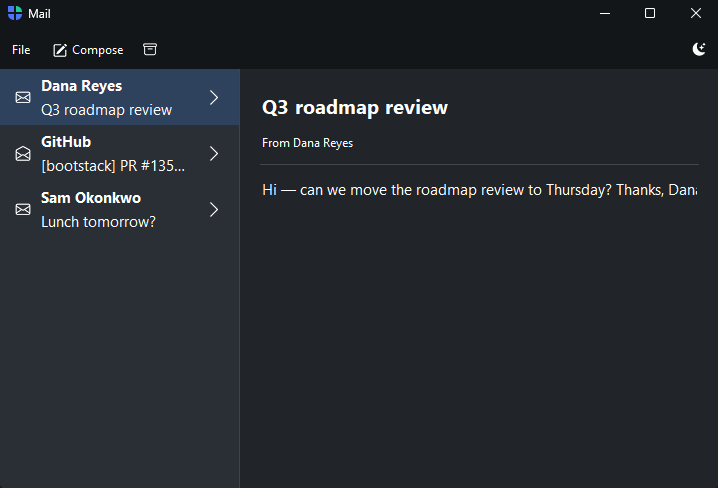
A data-bound list of records driving a detail view.
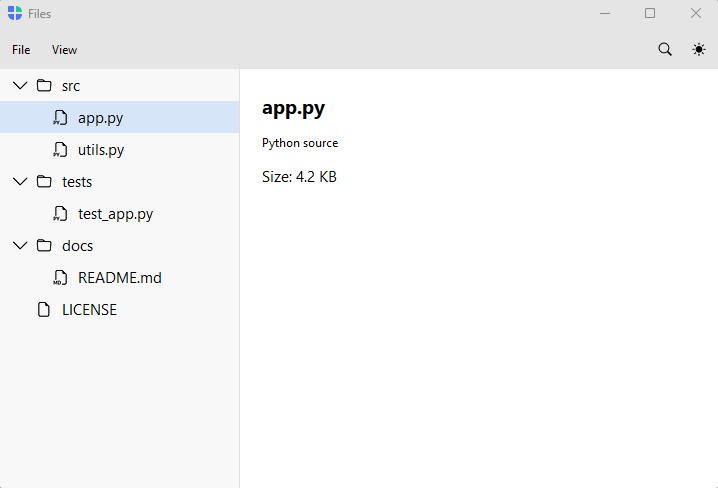
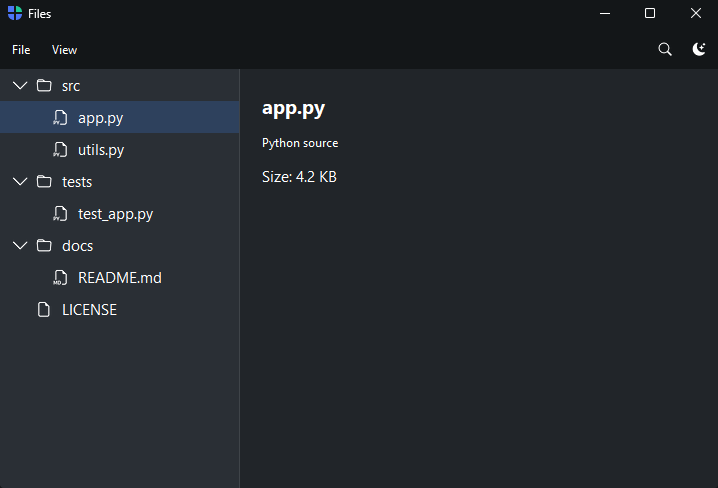
A data-bound hierarchy driving a detail view.
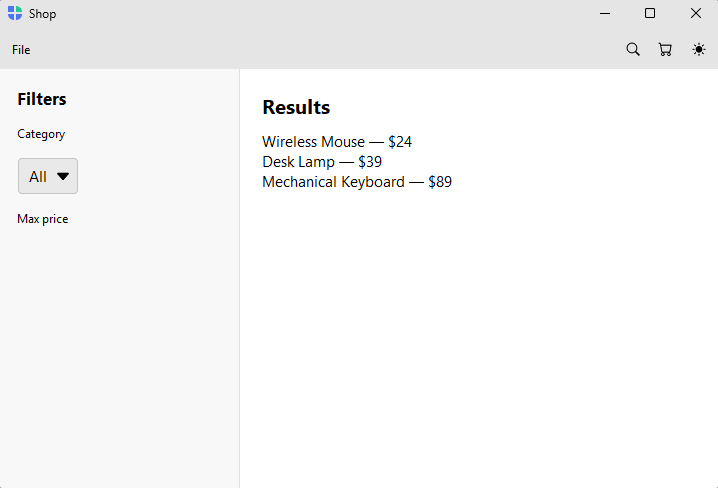
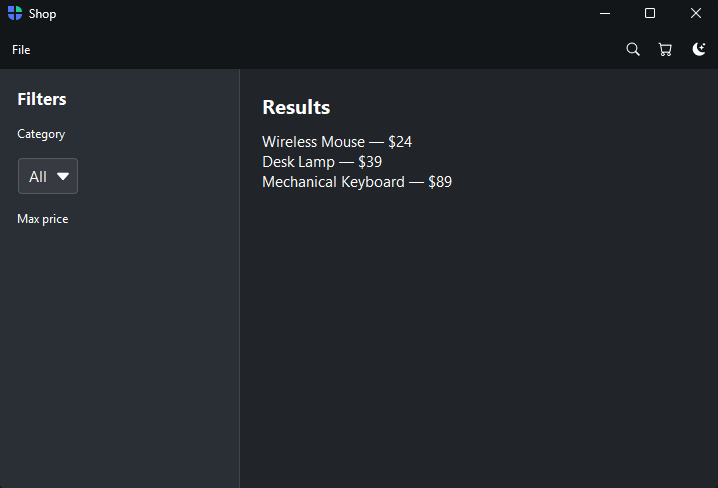
A bespoke sidebar you fill by hand — the escape hatch.
Higher-emphasis selection#
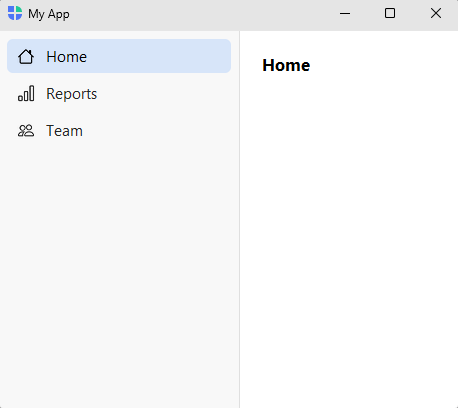
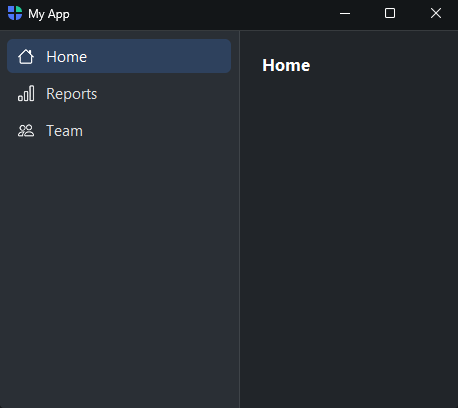
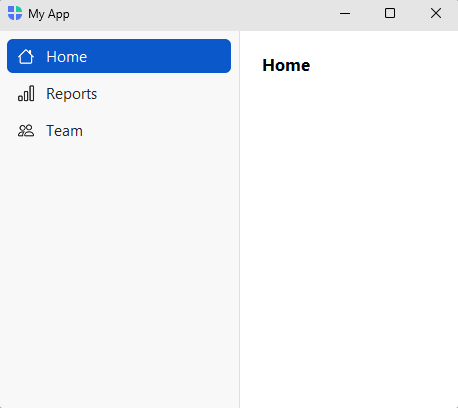
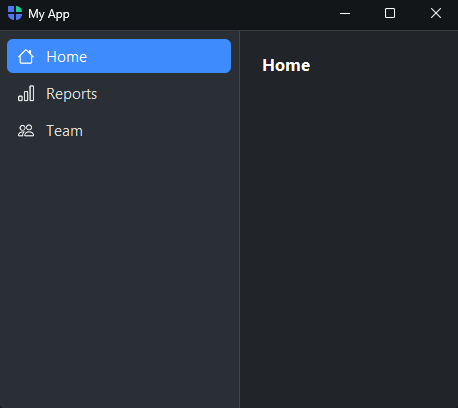
By default the selected item gets a subtle accent wash (variant="ghost").
Pass variant="solid" to page_nav() for a filled-accent item with on-accent
(white) text — the higher-emphasis look. (It needs nav_accent; with
nav_accent=None it falls back to a neutral wash.)
with shell.page_nav(variant="solid") as nav:
    ...
|
|
|---|---|
|
|
Scrollable pages#
Pass scrollable=True to wrap a page’s content in a vertical scroll area.
with nav.add_page("log", text="Log", icon="list", scrollable=True, padding=16):
    for i in range(100):
        bs.Label(f"Log entry {i}")
Toolbars#
The shell’s top region is a stack of Toolbar bands,
added with shell.add_toolbar() — the same chrome as on
App. A toolbar holds buttons, labels,
widgets, and menus (toolbar.add_menu(...)); each add_toolbar() call
stacks a new full-width band above the sidebar / content body. On macOS a
toolbar’s menus bridge to the native global menu bar.
The shell always draws a quiet hairline between the chrome stack and the
workspace below it, so a single toolbar needs no divider of its own. Reserve
add_toolbar(divider=True) for separating one stacked band from the next.
with bs.AppShell(title="My App") as shell:
    with shell.add_toolbar() as bar:
        with bar.add_menu("File") as file:
            file.add_action("Quit", shortcut="Mod+Q", on_click=shell.close)
        bar.add_spacer()
        bar.add_theme_toggle()
        bar.add_button(label="Save", icon="save", on_click=save)
Status bar#
shell.statusbar is a full-width band along the bottom, intended for
passive status — counts, sync state, a ready message. Interactive controls
(buttons, a search box) belong on a toolbar by convention; the status bar
reads best as a quiet display strip. It renders only once a segment is added, or
when the shell is built with show_statusbar=True. add_spacer() (or
side="right") pushes following segments to the right cluster.
shell.statusbar.add_text("Ready")
shell.statusbar.add_spacer()
shell.statusbar.add_text("v1.0", side="right")
Pass textsignal= to make a segment reactive — bind it to a
Signal and it updates live as the value changes:
selected = bs.Signal("0 selected")
shell.statusbar.add_text(textsignal=selected)
...
selected.set("3 selected")   # the status updates automatically
The StatusBar handle also supports
add_widget() (a custom passive widget), add_spacer(), and clear();
or use it as a container — with shell.statusbar: parents widgets into the
left cluster.
Sidebar visibility#
sidebar_mode= sets the initial sidebar state; the property reads and writes it
live. Ctrl/Cmd-B toggles it (when collapsible=True), and the explicit
toggle_sidebar() / show_sidebar() / hide_sidebar() verbs control
visibility directly.
To give users a visible control, add a hamburger toggle to a toolbar with
add_sidebar_toggle() (place it wherever you like — conventionally leftmost):
with shell.add_toolbar() as bar:
    bar.add_sidebar_toggle()          # collapses to the icon rail by default
    bar.add_spacer()
    bar.add_theme_toggle()
By default it shrinks the sidebar to the icon rail (falling back to hidden for a
data-bound sidebar that can’t show icons); pass collapse="hidden" to always
fully hide. See Toolbar for the collapse modes and the
icon customization (a single glyph, or a stateful open/closed pair).
Mode |
Behavior |
|---|---|
|
Full-width sidebar with icons and labels (default). |
|
Narrow, icon-only sidebar (a |
|
Sidebar hidden. |
shell = bs.AppShell(sidebar_mode="compact")
shell.sidebar_mode = "expanded"   # change it live
shell.toggle_sidebar()
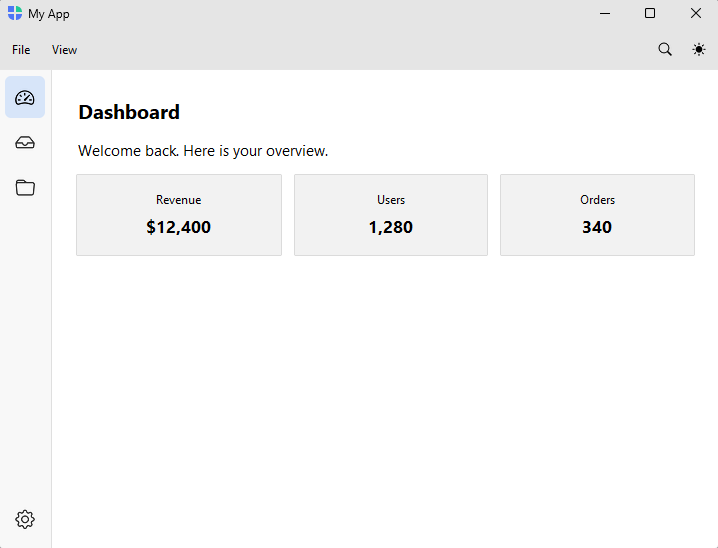
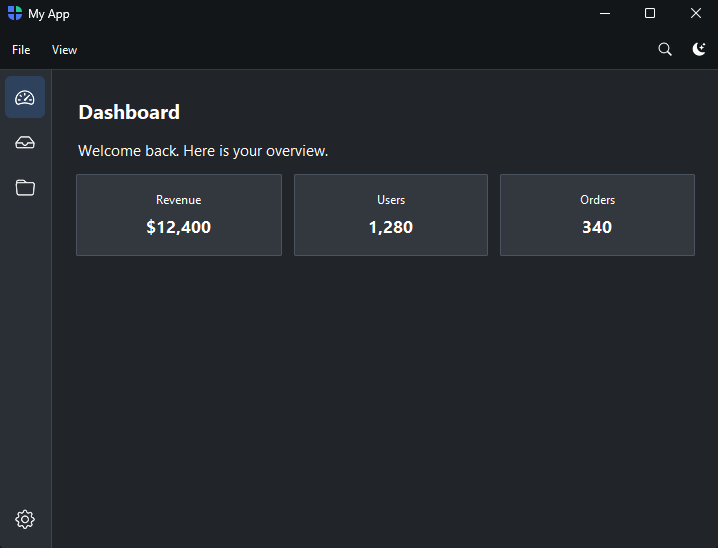
In 'compact' a page_nav sidebar collapses to an icon-only rail (the labels
hide; footer items stay pinned):
Styling#
Each region’s background is a surface token you can
override; the defaults give the shell its layered look (the status band sits on
the elevated chrome surface, the sidebar a step below). The dividers and the
nav-item selection wash blend against these automatically.
Kwarg |
Default |
Region |
|---|---|---|
|
|
The navigation sidebar. |
|
|
The bottom status band. |
The selected nav item is neutral by default. Set nav_accent to tint the
selection with an accent (None keeps it neutral); the per-sidebar
page_nav(variant=...) then chooses how the accent reads — a subtle 'ghost'
wash (default) or a filled 'solid' item.
bs.AppShell(nav_accent="primary") # accent the selection; ghost wash by default
Events#
All shorthands take a handler (returns a cancellable
Subscription) or no argument (returns a
composable Stream).
Shorthand |
Handler receives |
|---|---|
|
|
|
|
|
shell.on_page_change(lambda e: print("now on:", e.page))
Theme, locale, and configuration#
Like App, an AppShell is configured
through flat constructor keyword arguments, and the same options are read and
changed at runtime through shell.* properties. Assigning shell.theme or
shell.locale takes effect live.
shell = bs.AppShell(
    title="My App",
    theme="bootstrap-dark",
    light_theme="nord-light",
    dark_theme="nord-dark",
    locale="de_DE",
)

shell.theme = "bootstrap-light"     # switch the theme now
React to changes and persist them across launches with a Store — from_store() restores configuration and tolerates
version skew, and the change events write each value back:
from bootstack.store import Store

store = Store("settings")
shell = bs.AppShell.from_store(store, title="My App")
shell.on_theme_change(lambda theme: store.update(theme=theme))
See App Configuration for the full configuration reference — every option, the locale-derived read-only properties, and window-state persistence.
Window options#
bs.AppShell(
    title="My App",
    icon="assets/app.ico",        # icon file, an Image, or an AppIcon
    size=(1024, 768),
    min_size=(640, 480),
    resizable=(True, True),
)

# Custom chrome (no OS title bar; draws a themed border instead)
bs.AppShell(undecorated=True)
See also#
Workbench —
the two-tier shell: a workspace rail plus per-workspace sidebars.
PageStack —
page navigation without a built-in sidebar.
Tabs —
tab-strip navigation.
Toolbar —
the standalone toolbar widget.
API#
The complete reference for AppShell lives on the
Application API page. At a glance:
Single-tier application window: one navigation sidebar plus content. |
Full Example#
 1
 2
 3def metric_card(label, value):
 4    """A reusable builder — paints one metric card into the active container."""
 5    with bs.Card(padding=16, gap=4):
 6        bs.Label(label, font="caption")
 7        bs.Label(value, font="heading-md")
 8
 9
10with bs.AppShell(title="My App", size=(800, 540)) as shell:
11
12    # ── Toolbar ───────────────────────────────────────────────────────────────
13    with shell.add_toolbar() as bar:
14        bar.add_spacer()
15        bar.add_theme_toggle()
16
17    # ── Pages ─────────────────────────────────────────────────────────────────
18    # Each page IS a column — set padding/gap on add_page; no inner wrapper.
19    with shell.page_nav() as nav:
20        with nav.add_page("dashboard", text="Dashboard", icon="speedometer2", padding=24, gap=12):
21            bs.Label("Dashboard", font="heading-lg")
22            bs.Label("Welcome back. Here is your overview.")
23            with bs.Grid(columns=3, gap=12, horizontal="stretch"):
24                metric_card("Revenue", "$12,400")
25                metric_card("Users", "1,280")
26                metric_card("Orders", "340")
27
28        with nav.add_page("inbox", text="Inbox", icon="inbox", padding=24, gap=8):
29            bs.Label("Inbox", font="heading-lg")
30            bs.Label("No new messages.")
31
32        nav.add_divider()
33        nav.add_header("Documents")
34
35        with nav.add_page("files", text="Files", icon="folder", padding=24, gap=8):
36            bs.Label("Files", font="heading-lg")
37            bs.Label("Your documents will appear here.")
38
39        with nav.add_page("images", text="Images", icon="image", padding=24, gap=8):
40            bs.Label("Images", font="heading-lg")
41            bs.Label("Your images will appear here.")
42
43        with nav.add_page("settings", text="Settings", icon="gear", pin_to_footer=True, padding=24, gap=8):
44            bs.Label("Settings", font="heading-lg")
45            bs.Label("Adjust your preferences.")
46
47    shell.navigate("dashboard")
48
49shell.run()