Navigation
Navigation is how users move between different views in your application. bootstack provides several patterns for organizing and switching between content areas.
This guide covers:
- AppShell — the fastest way to get toolbar + sidebar + pages
- SideNav — standalone sidebar navigation with display modes and groups
- Tabs — category-based switching with Notebook
- Stacked views — flow-based navigation with PageStack
- Custom sidebar — rolling your own navigation panel
Choosing a navigation pattern
| Pattern | Best for | Widget |
|---|---|---|
| AppShell | Most desktop apps — toolbar, sidebar, and pages in one call | AppShell |
| SideNav + PageStack | Custom layouts where you control toolbar/content placement | SideNav + PageStack |
| Tabs | Category switching, settings panels, dashboards | Notebook |
| Stacked views | Wizards, multi-step flows, drill-down navigation | PageStack |
| Custom sidebar | Unusual layouts where built-in widgets don't fit | PageStack + custom sidebar |
For most applications, start with AppShell. Drop down to SideNav + PageStack if you
need more control over layout, or to a custom sidebar if your requirements are truly unique.
AppShell
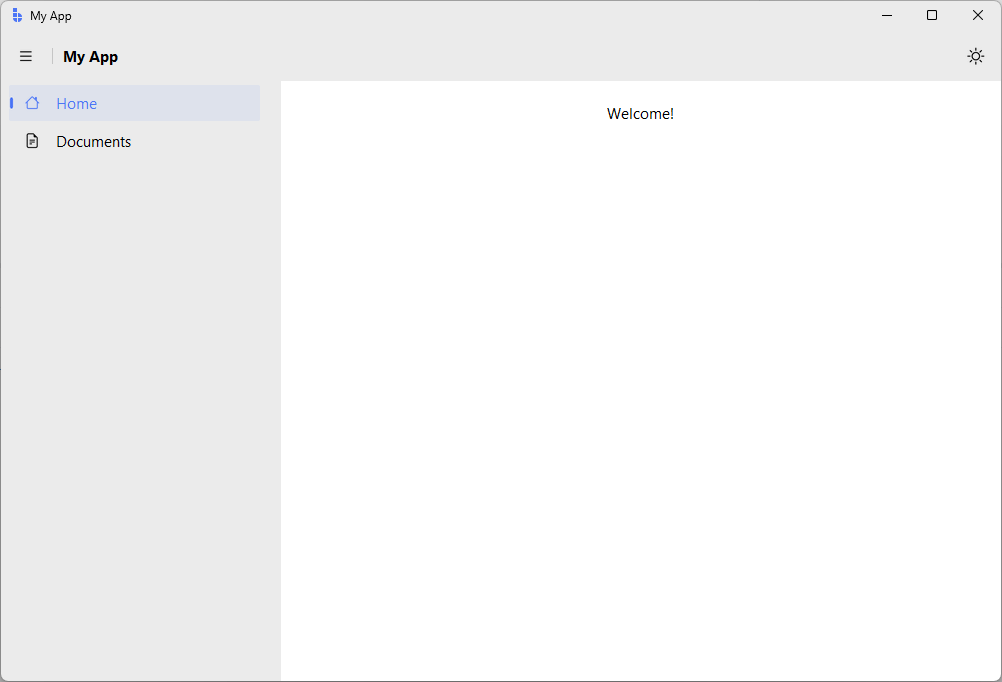
AppShell is the fastest way to build a navigation-based application. It wires together
a Toolbar, SideNav, and PageStack automatically:
import bootstack as bs

shell = bs.AppShell(title="My App", minsize=(1000, 650))

# Each add_page() creates a nav item and returns a Frame for content
home = shell.add_page("home", text="Home", icon="house")
bs.Label(home, text="Welcome!").pack(padx=20, pady=20)

docs = shell.add_page("docs", text="Documents", icon="file-earmark-text")
bs.Label(docs, text="Your documents.").pack(padx=20, pady=20)

# Toolbar buttons appear on the right side
shell.toolbar.add_button(icon="sun", command=bs.toggle_theme)

shell.mainloop()
Groups and footer items
shell.add_group("files", text="Files", icon="folder")
shell.add_page("local", text="Local", icon="hdd", group="files")
shell.add_page("cloud", text="Cloud", icon="cloud", group="files")

shell.add_page("settings", text="Settings", icon="gear", is_footer=True)
Programmatic navigation
shell.navigate("settings")

shell.on_page_changed(lambda e: print(f"Now on: {shell.current_page}"))
When to use AppShell
- You want the standard toolbar + sidebar + pages layout
- You want navigation wired to pages automatically
- You want a quick scaffold without manual widget plumbing
When to use something else
- You need a custom toolbar position or multiple toolbars — use
SideNav+PageStackdirectly - You need horizontal tabs — use
Notebook - You need a plain window — use
App
AppShell Reference
See AppShell for all options including frameless mode, display modes, and component access.
SideNav
SideNav is the standalone sidebar navigation widget. Use it when you need sidebar navigation
but want full control over the surrounding layout:
import bootstack as bs

app = bs.App(title="SideNav Demo", minsize=(900, 600))

nav = bs.SideNav(app)
nav.pack(side="left", fill="y")

nav.add_item("home", text="Home", icon="house")
nav.add_item("docs", text="Documents", icon="file-earmark-text")
nav.add_item("settings", text="Settings", icon="gear")

nav.select("home")

nav.on_selection_changed(lambda e: print(f"Selected: {e.data['key']}"))

app.mainloop()
Wiring SideNav to PageStack
When using SideNav outside of AppShell, you wire it to a PageStack manually:
import bootstack as bs

app = bs.App(title="SideNav + PageStack", minsize=(900, 600))

# Sidebar
nav = bs.SideNav(app)
nav.pack(side="left", fill="y")

# Content area
stack = bs.PageStack(app)
stack.pack(side="left", fill="both", expand=True)

# Add nav items and pages
nav.add_item("home", text="Home", icon="house")
home = stack.add("home", padding=20)
bs.Label(home, text="Welcome!").pack()

nav.add_item("settings", text="Settings", icon="gear")
settings = stack.add("settings", padding=20)
bs.Label(settings, text="Settings page").pack()

# Wire selection to navigation
nav.on_selection_changed(lambda e: stack.navigate(e.data["key"]))

nav.select("home")
app.mainloop()
Display modes
| Mode | Description |
|---|---|
expanded |
Full width with icon and text (default) |
compact |
Narrow, icon-only; groups show popup menus |
minimal |
Hidden until toggled open |
nav = bs.SideNav(app, display_mode="compact")

# Toggle between modes
nav.toggle_pane()
nav.set_display_mode("expanded")
Groups
Groups expand/collapse in expanded mode and show a popup menu in compact mode:
nav.add_group("files", text="Files", icon="folder")
nav.add_item("local", text="Local", icon="hdd", group="files")
nav.add_item("cloud", text="Cloud", icon="cloud", group="files")
SideNav Reference
See SideNav for headers, separators, footer items, events, and toolbar integration.
Tabs with Notebook
Use Notebook when users need random access to related views. Tabs are visible and clickable,
making it easy to switch between categories.
import bootstack as bs

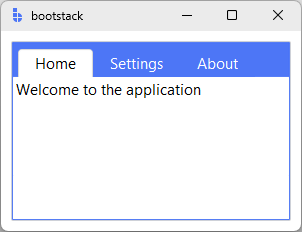
app = bs.App(size=(300, 200))

notebook = bs.Notebook(app, accent="primary")

notebook.pack(fill="both", expand=True, padx=10, pady=10)

# Create tabs
home = notebook.add(text="Home", key="home")
settings = notebook.add(text="Settings", key="settings")
about = notebook.add(text="About", key="about")

# Add content to each tab
bs.Label(home, text="Welcome to the application").pack(anchor="w")
bs.Label(settings, text="Configure your preferences here").pack(anchor="w")
bs.Label(about, text="Version 1.0").pack(anchor="w")

app.mainloop()
When to use tabs
- Users need to switch freely between views
- Views are peers (no hierarchy or sequence)
- You have 2-7 top-level sections
When to avoid tabs
- You have many sections (7+) — use SideNav or AppShell
- Navigation is sequential — use PageStack instead
- Views have parent-child relationships — use PageStack with back/forward
Stacked views with PageStack
Use PageStack when navigation is sequential or flow-based. It maintains a history stack,
enabling back/forward navigation like a web browser.
import bootstack as bs

app = bs.App()

stack = bs.PageStack(app)
stack.pack(fill="both", expand=True, padx=10, pady=10)

# Create pages
welcome = stack.add("welcome", padding=20)
details = stack.add("details", padding=20)
confirm = stack.add("confirm", padding=20)

# Welcome page
bs.Label(welcome, text="Welcome! Let's get started.").pack(anchor="w", pady=(0, 10))
bs.Button(welcome, text="Continue", command=lambda: stack.navigate("details")).pack()

# Details page
bs.Label(details, text="Enter your details").pack(anchor="w", pady=(0, 10))
bs.Button(details, text="Back", command=stack.back).pack(side="left", padx=(0, 5))
bs.Button(details, text="Continue", command=lambda: stack.navigate("confirm")).pack(side="left")

# Confirm page
bs.Label(confirm, text="All done!").pack(anchor="w", pady=(0, 10))
bs.Button(confirm, text="Back", command=stack.back).pack()

stack.navigate("welcome")
app.mainloop()
When to use PageStack
- Multi-step wizards or forms
- Drill-down navigation (list → detail → edit)
- Back/forward improves usability
Navigation methods
| Method | Description |
|---|---|
navigate(key) |
Push a new page onto the history stack |
navigate(key, replace=True) |
Replace current page (no back) |
back() |
Go to previous page |
forward() |
Go to next page (after back) |
can_back() |
Check if back is available |
can_forward() |
Check if forward is available |
Combining patterns
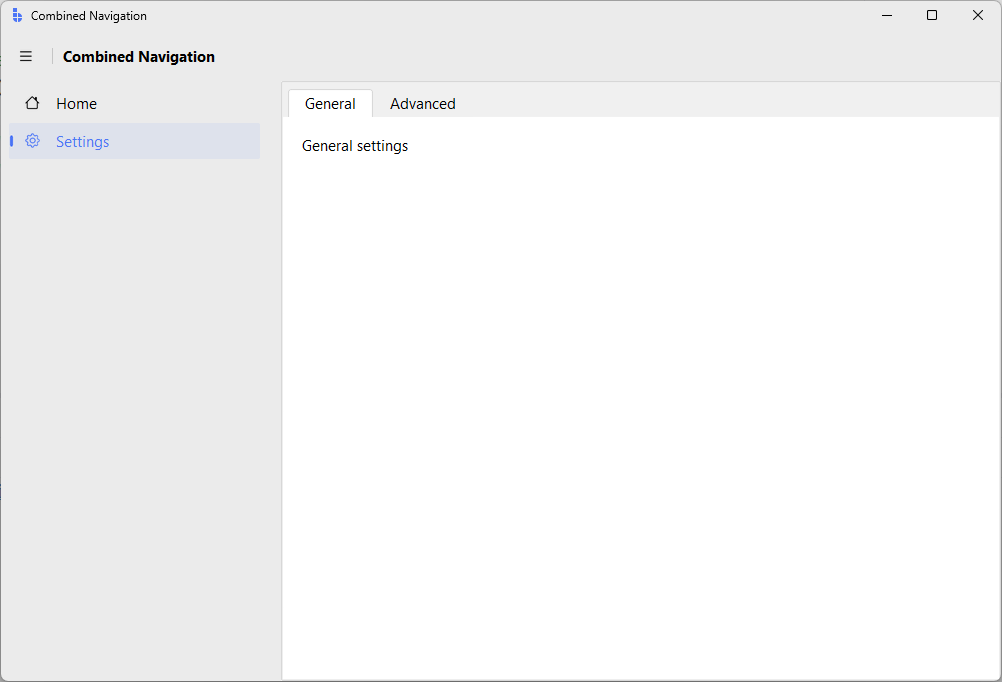
You can combine navigation patterns. For example, an AppShell for top-level sections, with tabs inside one of the pages:
import bootstack as bs

shell = bs.AppShell(title="Combined Navigation", minsize=(1000, 650))

# Simple page
home = shell.add_page("home", text="Home", icon="house")
bs.Label(home, text="Dashboard", font="heading-xl").pack(anchor="w", padx=20, pady=20)

# Page with tabs inside
settings = shell.add_page("settings", text="Settings", icon="gear")

tabs = bs.Notebook(settings)
tabs.pack(fill="both", expand=True)

general = tabs.add(text="General", key="general", padding=16)
bs.Label(general, text="General settings").pack(anchor="w")

advanced = tabs.add(text="Advanced", key="advanced")
bs.Label(advanced, text="Advanced options").pack(anchor="w")

shell.mainloop()
Custom sidebar
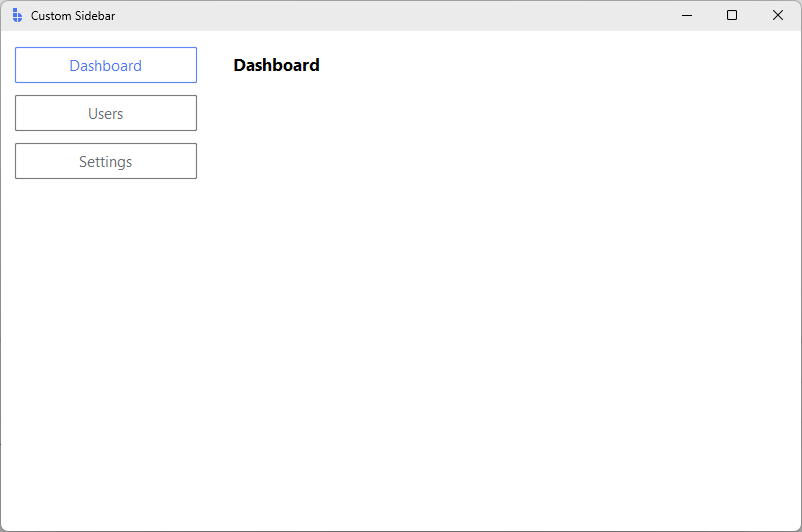
For layouts where SideNav doesn't fit, you can build a custom sidebar with buttons
controlling a PageStack:
import bootstack as bs

app = bs.App(title="Custom Sidebar", minsize=(800, 500))

# Sidebar
sidebar = bs.Frame(app, padding=10, width=200)
sidebar.pack(side="left", fill="y")

# Content
stack = bs.PageStack(app)
stack.pack(side="left", fill="both", expand=True)

# Pages
for key in ["dashboard", "users", "settings"]:
    page = stack.add(key, padding=20)
    bs.Label(page, text=key.title(), font="heading-xl").pack(anchor="w")

# Navigation buttons with active tracking
nav_buttons = {}

for label, key in [("Dashboard", "dashboard"), ("Users", "users"), ("Settings", "settings")]:
    btn = bs.Button(
        sidebar, text=label, width=20,
        accent="secondary", variant="outline",
        command=lambda k=key: stack.navigate(k),
    )
    btn.pack(fill="x", pady=2)
    nav_buttons[key] = btn

def on_page_changed(event):
    current = event.data.get("page")
    for key, btn in nav_buttons.items():
        if key == current:
            btn.configure(accent="primary", variant=None)
        else:
            btn.configure(accent="secondary", variant="outline")

stack.on_page_changed(on_page_changed)
stack.navigate("dashboard")

app.mainloop()
This is significantly more code than using SideNav or AppShell, so only use this
approach when you need a layout that the built-in widgets can't provide.
Best practices
Keep navigation consistent
- Place navigation in the same location across all views
- Use consistent labels and icons
- Don't mix tabs and sidebar for the same level of navigation
Provide context
- Show the current location (active tab, highlighted sidebar item)
- Use breadcrumbs for deep hierarchies
- Enable back navigation when appropriate
Handle deep linking
If your app needs to open a specific view programmatically:
# AppShell
shell.navigate("users")

# PageStack directly
stack.navigate("user-detail", data={"user_id": 42})
Preserve state
When switching views, consider whether state should be preserved:
- Notebook tabs preserve state by default (widgets stay alive)
- PageStack pages also preserve state (pages aren't destroyed)
- For forms, save state explicitly before navigating away