App Structure
This guide explains how a bootstack application is organized—the App class, windows, layout, state, and lifecycle.
Use bootstack start MyApp to scaffold a new project with the recommended structure.
The App Class
Every bootstack application starts with either App or AppShell:
App— a blank window. You build the layout from scratch.AppShell— anAppwith a toolbar, sidebar navigation, and page stack already wired together.
import bootstack as bs

# Option A: blank window
app = bs.App(title="My Application")

# Option B: window with built-in navigation
app = bs.AppShell(title="My Application", minsize=(1000, 650))
Both create the main window, initialize theming, set up the application context, and manage the event loop. You typically create one per process. Additional windows use Toplevel.
Minimal Application
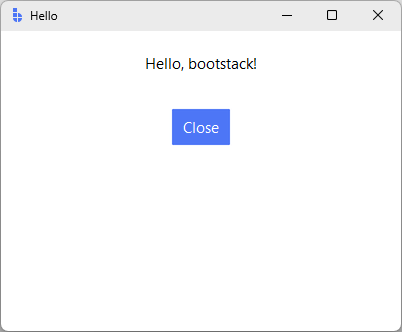
A complete, runnable application:
import bootstack as bs

app = bs.App(title="Hello", minsize=(400, 300))

bs.Label(app, text="Hello, bootstack!").pack(padx=20, pady=20)
bs.Button(app, text="Close", command=app.destroy).pack(pady=10)

app.mainloop()
This demonstrates the core pattern:
- Create the App
- Add widgets to it
- Run the event loop
AppShell: Navigation Built In
Most desktop applications follow the same layout: toolbar at the top, sidebar on the left, page content on the right. AppShell gives you that in one call:
import bootstack as bs

shell = bs.AppShell(title="My App", minsize=(1000, 650))

# Each add_page() creates a nav item and returns a Frame for content
home = shell.add_page("home", text="Home", icon="house")
bs.Label(home, text="Welcome!").pack(padx=20, pady=20)

# Add as many pages as you need
docs = shell.add_page("docs", text="Documents", icon="file-earmark-text")
bs.Label(docs, text="Your documents.").pack(padx=20, pady=20)

# Add toolbar buttons (they appear on the right side)
shell.toolbar.add_button(icon="sun", command=bs.toggle_theme)

shell.mainloop()
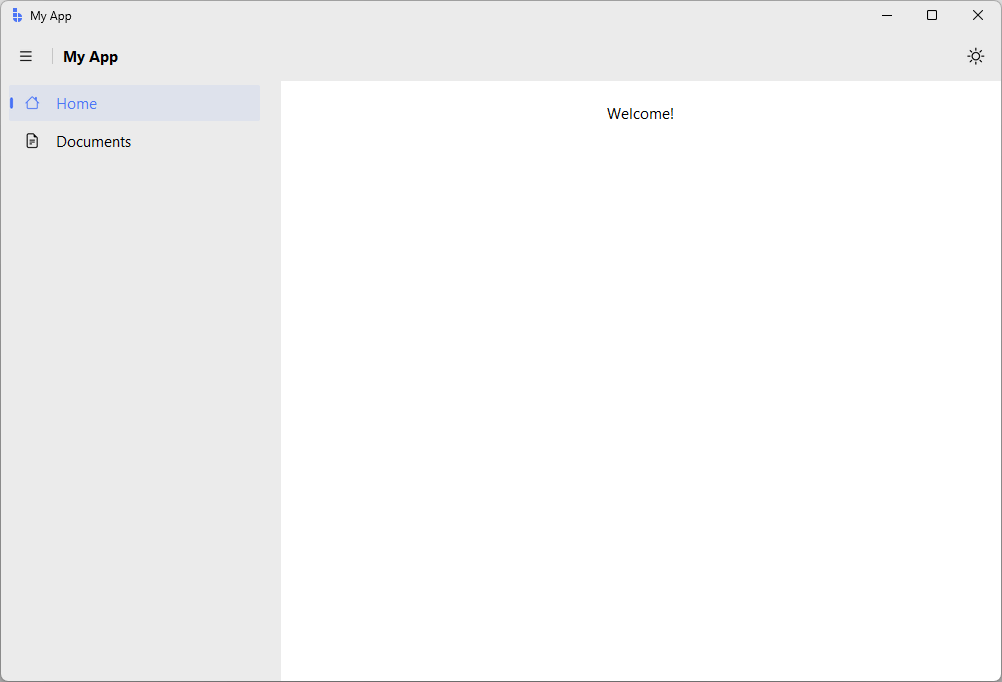
AppShell extends App, so everything that works on App works on AppShell too.
Frameless window
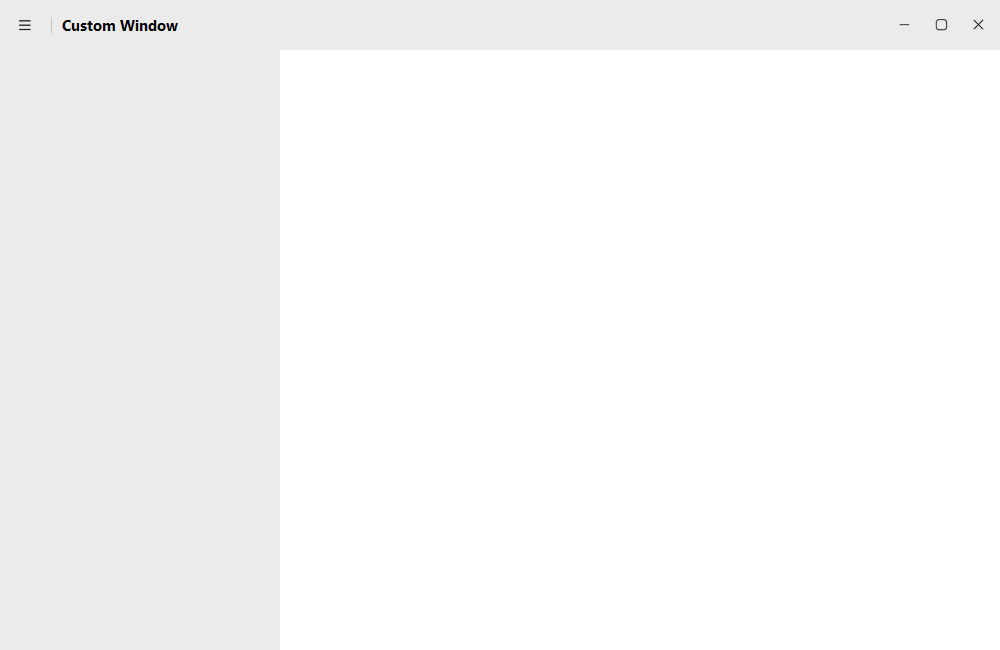
Set frameless=True to remove OS window chrome and get a fully custom window. The toolbar automatically gains minimize/maximize/close buttons and becomes draggable:
shell = bs.AppShell(
    title="Custom Window",
    minsize=(1000, 650),
    frameless=True,
)
When to use App vs AppShell
App |
AppShell |
|
|---|---|---|
| Layout | You build everything | Toolbar + sidebar + pages included |
| Best for | Custom layouts, simple tools, dialogs | Navigation-based apps |
| Navigation | Manual (wire your own) | Automatic (add_page wires nav to pages) |
Application Options
Common App parameters:
app = bs.App(
    title="My App",           # Window title
    theme="amber-light",      # Theme name
    minsize=(800, 600),          # Initial size (width, height)
    resizable=(True, True),   # Allow resize (width, height)
    alpha=1.0,                # Window transparency
)
Themes
See Design System → Custom Themes for available themes and customization.
Project Structure
bootstack start generates one of two layouts depending on the template you
choose. The basic template (default) produces a single-view App:
myapp/                       # bootstack start MyApp
├── src/myapp/
│   ├── __init__.py
│   ├── main.py              # App entry point
│   └── views/
│       ├── __init__.py
│       └── main_view.py
├── assets/                  # Images, icons
├── bootstack.toml                # Project configuration
└── README.md
The appshell template produces an AppShell with sidebar navigation
and one file per page:
myapp/                       # bootstack start MyApp --template appshell
├── src/myapp/
│   ├── __init__.py
│   ├── main.py
│   └── pages/
│       ├── __init__.py
│       ├── home_page.py
│       └── settings_page.py
├── assets/
├── bootstack.toml
└── README.md
The chosen template is recorded in bootstack.toml as [app].template, so
bootstack add view and bootstack add page know which scaffold is appropriate for
the project.
As your project grows:
myapp/
├── src/myapp/
│   ├── __init__.py
│   ├── main.py
│   ├── settings.py      # AppSettings / defaults
│   ├── state.py         # Signals and shared state
│   ├── views/
│   │   ├── main_view.py
│   │   └── settings_view.py
│   └── services/        # IO, data, persistence
├── assets/
├── locales/             # Translation files
└── bootstack.toml
Use bootstack start MyApp to scaffold a new project with this structure.
Project Structure
See Tooling → Project Structure for detailed guidance on file organization, packaging, and PyInstaller.
Layout Hierarchy
bootstack applications follow a container hierarchy:
App (blank window)
└── PackFrame (main layout)
    ├── Frame (toolbar area)
    │   └── Button, Button, ...
    ├── PackFrame (content area)
    │   └── widgets...
    └── Frame (status bar)
        └── Label
With AppShell, the top-level structure is built for you:
AppShell (window)
├── Toolbar
│   └── hamburger, title, spacer, [your buttons]
└── Frame (body)
    ├── SideNav
    │   └── SideNavItem, SideNavGroup, ...
    └── PageStack
        ├── Frame (page "home")
        ├── Frame (page "docs")
        └── ...
Key principles:
- Containers own layout — each container manages its children
- Widgets don't position themselves — their parent decides placement
- Nesting creates structure — compose complex layouts from simple containers
Layout Guide
See Layout for details on Frame, PackFrame, and GridFrame.
Application Settings
App-wide configuration — theme, locale, default behaviors — lives in a single
AppSettings object passed to App (or AppShell) at construction. Settings
are applied at startup and remain readable throughout the app lifecycle.
See App Settings for declaring and applying settings.
State Management
Use signals for state shared between widgets — bs.Signal(value), passed
to widgets via signal= (or read/written via .get() / .set()). For larger
apps, group related signals in a dedicated state.py module so views can
import them without circular dependencies.
See Reactivity for signals, subscriptions, callbacks, and events.
Window Lifecycle
The App lifecycle:
- Creation —
App()creates the window and initializes theming - Building — you add widgets and configure layout
- Running —
mainloop()processes events until the window closes - Cleanup — the window is destroyed
For additional windows:
def open_settings():
    settings = bs.Toplevel(app, title="Settings")

    bs.Label(settings, text="Settings go here").pack(padx=20, pady=20)
    bs.Button(settings, text="Close", command=settings.destroy).pack(pady=10)

bs.Button(app, text="Settings", command=open_settings).pack(pady=10)
Toplevel creates a secondary window that:
- shares the event loop with
App - can be modal or non-modal
- is destroyed independently
Theme Switching
bootstack supports light/dark variants and runtime switching via
bs.toggle_theme() and bs.set_theme(name). All widgets update automatically.
See Color & Theming for accent tokens, surfaces, custom themes, and light_theme / dark_theme configuration.
Localization Setup
Set locale= in app settings to switch the active locale; widgets that opt in
to message keys resolve them through the active message catalog. Number, date,
and currency formatting follow the same locale.
See Localization for message catalogs and runtime language switching.
Putting It Together
A structured application example:
import bootstack as bs

# State
counter = bs.Signal(0)

def increment():
    counter.set(counter.get() + 1)

# App
app = bs.App(title="Counter", minsize=(300, 200))

# Layout
main = bs.PackFrame(app, direction="vertical", gap=10, padding=20)
main.pack(fill="both", expand=True)

# Display
display = bs.Label(main, font="display-xl[48]")
counter.subscribe(lambda v: display.configure(text=str(v)))
display.pack()

# Controls
controls = bs.PackFrame(main, direction="horizontal", gap=10)
controls.pack()

bs.Button(controls, text="+1", command=increment).pack()
bs.Button(controls, text="Reset", command=lambda: counter.set(0)).pack()

app.mainloop()
This demonstrates:
- Signal-based state
- PackFrame for layout
- Reactive label updates
- Clean separation of concerns
For navigation-based applications, AppShell replaces the manual layout wiring:
import bootstack as bs

shell = bs.AppShell(title="My App", minsize=(900, 600))

# State
counter = bs.Signal(0)

# Pages
home = shell.add_page("home", text="Home", icon="house")
display = bs.Label(home, font="display-xl[48]")
counter.subscribe(lambda v: display.configure(text=str(v)))
display.pack(padx=20, pady=20)

controls = bs.PackFrame(home, direction="horizontal", gap=10)
controls.pack()
bs.Button(controls, text="+1", command=lambda: counter.set(counter.get() + 1)).pack()
bs.Button(controls, text="Reset", command=lambda: counter.set(0)).pack()

about = shell.add_page("about", text="About", icon="info-circle")
bs.Label(about, text="Counter App v1.0").pack(padx=20, pady=20)

shell.mainloop()
Next Steps
- Layout — building layouts with containers
- Navigation — tabs, stacks, and sidebar patterns
- Reactivity — signals, callbacks, and events
- Project Structure — file organization and packaging
- CLI — scaffolding and build tools