

Master–detail (tree)#
A hierarchy in the sidebar drives a detail view — the file explorer, the settings tree, the category browser. Like the list master–detail, but the records nest under parents.
How it works#
tree_nav builds the sidebar from a hierarchy and returns the Tree
driving it. Decorate a builder with @shell.detail to render the selected
node, received as a record dict (its label is text). A tree opens with
nothing selected, so a placeholder shows in the content area until a node is
picked.
Declare the hierarchy inline with nodes= (each a {"label", "icon",
"children", ...} spec; extra keys ride along as the node’s data):
tree = shell.tree_nav(nodes=[
    {"label": "src", "icon": "folder", "children": [
        {"label": "app.py", "icon": "filetype-py", "size": "4.2 KB"},
    ]},
])

@shell.detail
def show(node):
    with bs.Column(horizontal_items="left", gap=12, padding=(16, 10)):
        bs.Label(node["text"], font="heading-lg")
For large or dynamic hierarchies, pass source= instead — a flat
adjacency-list data source where each row names
its parent (tree_nav(source=files, parent_field="parent_id", label_field="name"));
the tree then loads each branch lazily as it expands.
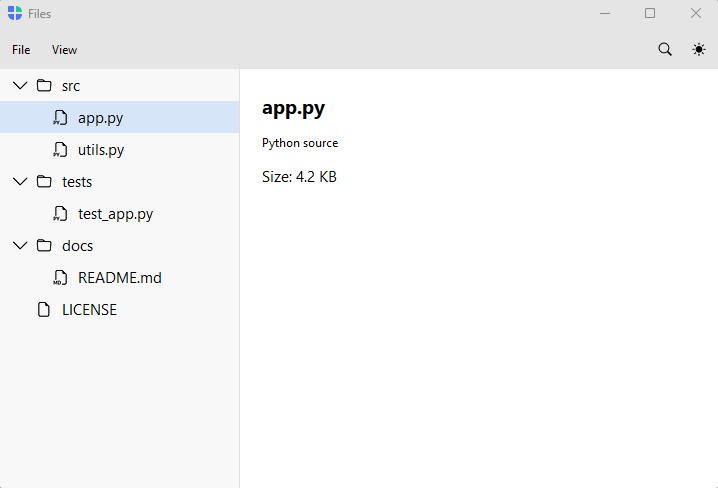
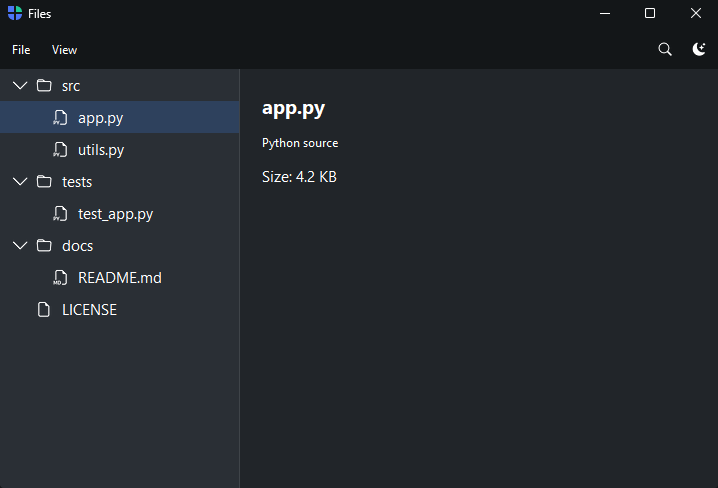
Because tree_nav hands back the Tree, you can drive the view — the file
explorer above opens expanded with a file selected:
tree.expand_all()
app = tree.find(lambda node: node.label == "app.py")
if app is not None:
    tree.select(app)
Example#
 1"""Master–detail (tree) — a hierarchy drives a detail view (a file explorer).
 2
 3``tree_nav`` builds the sidebar from a hierarchy and returns the `Tree` driving
 4it; ``@shell.detail`` renders the selected node, received as a record dict. A
 5folders → file-details browser is the archetypal tree screen. Here the hierarchy
 6is declared inline with ``nodes=`` (each node a ``{"label", "icon", "children",
 7...}`` spec; extra keys ride along as the node's data). For large or dynamic
 8hierarchies, pass ``source=`` instead — a flat adjacency-list data source where
 9each row names its parent.
10
11A tree opens with nothing selected (showing the ``placeholder``); we open it
12expanded with a file selected, like a real file explorer, by driving the
13returned `Tree`.
14"""
15import bootstack as bs
16
17tree_nodes = [
18    {"label": "src", "icon": "folder", "children": [
19        {"label": "app.py", "icon": "filetype-py", "kind": "Python source", "size": "4.2 KB"},
20        {"label": "utils.py", "icon": "filetype-py", "kind": "Python source", "size": "1.8 KB"},
21    ]},
22    {"label": "tests", "icon": "folder", "children": [
23        {"label": "test_app.py", "icon": "filetype-py", "kind": "Python source", "size": "2.0 KB"},
24    ]},
25    {"label": "docs", "icon": "folder", "children": [
26        {"label": "README.md", "icon": "filetype-md", "kind": "Markdown", "size": "920 B"},
27    ]},
28    {"label": "LICENSE", "icon": "file-earmark", "kind": "Text", "size": "1.1 KB"},
29]
30
31with bs.AppShell(title="Files", size=(900, 580)) as shell:
32    with shell.add_toolbar() as bar:
33        with bar.add_menu("File") as file:
34            file.add_action("New", shortcut="Mod+N", on_click=lambda: None)
35            file.add_action("Open", shortcut="Mod+O", on_click=lambda: None)
36            file.add_divider()
37            file.add_action("Quit", shortcut="Mod+Q", on_click=shell.close)
38        with bar.add_menu("View") as view:
39            view.add_action("Refresh", shortcut="Mod+R", on_click=lambda: None)
40        bar.add_spacer()
41        bar.add_button(icon="search", on_click=lambda: None)
42        bar.add_theme_toggle()
43
44    tree = shell.tree_nav(nodes=tree_nodes, placeholder="Select a file")
45
46    @shell.detail
47    def show(node):
48        with bs.Column(horizontal_items="left", gap=12, padding=(16, 10)):
49            bs.Label(node["text"], font="heading-lg")
50            bs.Label(node.get("kind", ""), font="caption")
51            if node.get("size"):
52                bs.Label(f"Size: {node['size']}")
53
54    # Open expanded with a file selected, like a real file explorer.
55    tree.expand_all()
56    app = tree.find(lambda node: node.label == "app.py")
57    if app is not None:
58        tree.select(app)
59
60shell.run()
When to use#
Use the tree master–detail when records form a hierarchy. If the records are flat, the simpler list master–detail reads better. Note that a tree can’t collapse into the icon rail (a branch isn’t one glyph), so under a workspace rail a tree sidebar hides rather than compacts.